Manage privacy and account data
Use Jovie’s shipped data controls without exposing private information or treating an irreversible deletion as routine cleanup.
Before you begin
- Sign in to the account whose data you want to manage.
- Open Data & Privacy
Go to Settings → Data & Privacy . This page currently provides Export data and Delete Account.
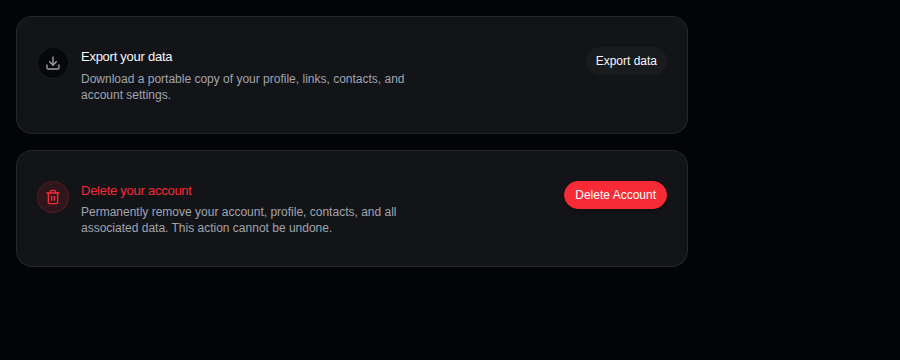
The signed-in Data & Privacy controls. - Export a portable copy
Choose Export data to download a dated JSON file. The implemented export includes account fields and settings plus owned profiles, profile links, and profile contacts. Store it somewhere private; it can contain account-private and contact information.
- Correct information at its source
Edit public artist details in Settings → Artist Profile and preview the signed-out profile. For account information that has no edit control, contact privacy@jov.ie and identify the field and expected correction. A request is not a promise that every value can be changed in every system.
- Review what is public
Your signed-out
jov.ie/{username}page is the reliable test for public information. Login email, billing details, Settings, exports, and audience contacts are account-private surfaces. Do not assume every field in an export is public because it belongs to a profile. - Manage consent where the control is shown
On a public Jovie page, Cookie Settings can appear under the page’s consent rules. Use it to review the offered Analytics and Marketing choices; essential storage stays enabled. See the Privacy Policy for the current policy text.
- Delete only when you intend to leave
Choose Delete Account, type
DELETE, and select Permanently Delete Account. Jovie requires a current signed-in session, removes the account through its deletion workflow, and signs you out. The product states that this cannot be undone, so export anything you need first.
What happens next
An export downloads in the browser. A successful deletion signs the account out and removes access to its profile and account controls. Support may ask you to prove control of the account before discussing private data; never send a password, sign-in code, or full payment details.
Troubleshooting
The export does not download
Stay signed in, allow the browser download, and try once more later. Repeated requests can be rate-limited. If it still fails, report the visible error without attaching the export itself.
Deletion does not complete
Confirm that you typed DELETE exactly and that the session is still current. If the request fails, the UI reports an error; stop retrying repeatedly and contact privacy support.
Public information is still wrong
Edit the source field, save it, and check the signed-out profile again. For catalog or provider inaccuracies, use the incorrect-data reporting guide.