Manage your subscription
Confirm the plan Jovie currently recognizes and complete supported subscription or payment actions in the correct billing surface.
Before you begin
- Sign in to the Jovie account that owns the subscription.
- Check the plan Jovie recognizes
Open Settings → Billing . The card shows Free, Pro, or Max plus a state such as Active, Cached, Syncing, or Manageable.
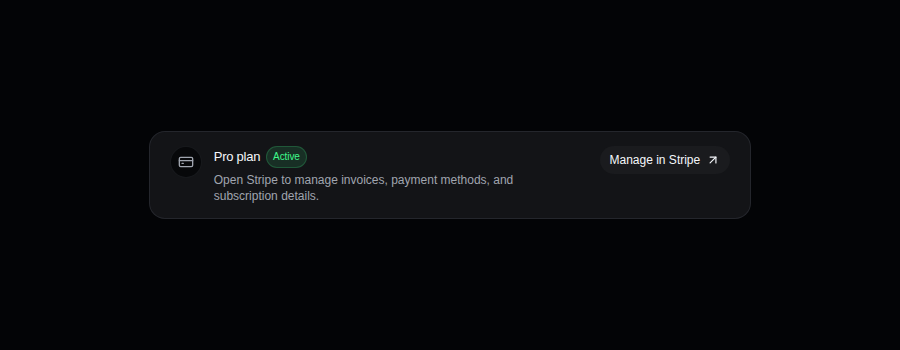
Settings → Billing shows the current plan state and its available action. - Open the action shown for your account
Choose Manage in Stripe when it appears. Stripe is the billing destination for Jovie web subscriptions and exposes the payment methods, invoices, and subscription details available for that customer. If the account has no Stripe customer, choose Compare plans instead.
- Upgrade or review detailed controls
Open the billing dashboard to compare available plans. A Free account can start an offered upgrade. An active Pro account can see Payment & Invoices and Cancel Subscription. There is no separate self-serve downgrade button; use only the choices currently displayed.
- Cancel only after reading the confirmation
Choose Cancel Subscription, review the access changes, then confirm. Cancellation is scheduled for the end of the current billing period, and the success message shows the date when Stripe returns one. This action does not promise a refund.
- Return to Jovie and verify entitlement state
After a Stripe change, return to Jovie and reload Billing. Confirm that the plan and available features match the completed action; a portal receipt by itself does not prove the app has refreshed its state.
What happens next
Jovie uses the refreshed plan state to gate paid features. Invoice and payment-method changes remain in Stripe; Jovie does not display full payment details in Settings.
Troubleshooting
A payment failed or an invoice needs attention
Open Manage in Stripe or Payment & Invoices and use the actions Stripe offers for that invoice or payment method. Return to Jovie afterward. Jovie does not promise when a bank or card provider will resolve a failure.
The plan is Cached, Syncing, or temporarily unavailable
Choose Retry where offered or reload once. A Cached badge means Jovie is showing its latest saved billing state while the payment service is unavailable; do not treat it as a newly confirmed Stripe state.
Payment succeeded but paid access is missing
Verify you are signed into the purchasing account and that Stripe shows the expected subscription. Reload Billing; if the mismatch remains, contact support with the account email and a redacted receipt or invoice number—never a full card number.