Claim your profile
Verify the Spotify identity attached to an eligible, unclaimed profile and take ownership of it.
Before you begin
- The correct public profile must show Claim Profile, Continue Claim, or Verify & Claim. A profile without a claim action is not eligible for this self-service flow.
- Start on the correct public profile
Check the profile name, image, and releases, then choose its claim action. Do not continue from a same-name artist you cannot verify.

A claim starts from the public profile banner. - Sign in when asked
If you are signed out, Jovie sends you to Continue to Jovie. Use Apple, Google, or the one-time email code; Jovie returns the claim context after authentication.
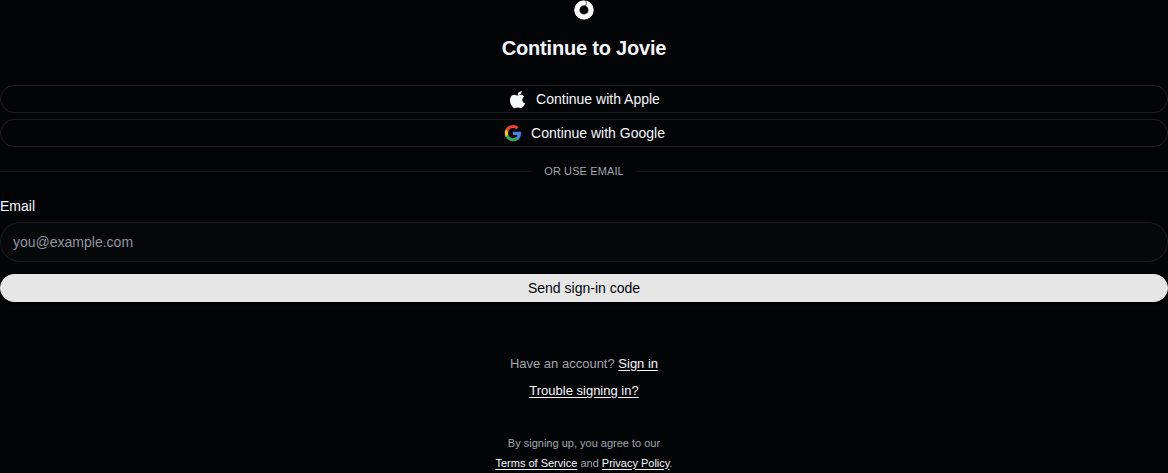
Authentication preserves the profile claim context. - Prove the matching Spotify identity
At Pick the exact Spotify artist, select the Spotify artist already attached to the public profile. This match is the ownership proof; a similar name is not enough.
- Finish the claim
Complete the Start flow. When verification succeeds, Jovie imports the matching artist data and opens your account workspace.
What happens next
You can edit your display name, username, image, location, bio, and links under Artist Profile . Provider identity and catalog ownership mismatches still require review.
Troubleshooting
The claim is interrupted or still in progress
Return to the same public profile and choose Continue Claim. Do not begin from a different artist page.
Verification rejects the selected artist
If Jovie says to choose the Spotify artist already attached to the profile, go back and select that exact identity. If it says the artist is linked to another account, sign in to the original account instead of retrying.
The profile is already claimed or belongs to the wrong artist
An already-owned profile may have no claim action. Sign in to the original account; if ownership or catalog data is wrong, use Fix the wrong artist or catalog with both profile URLs as evidence.